Custom Integration Templates
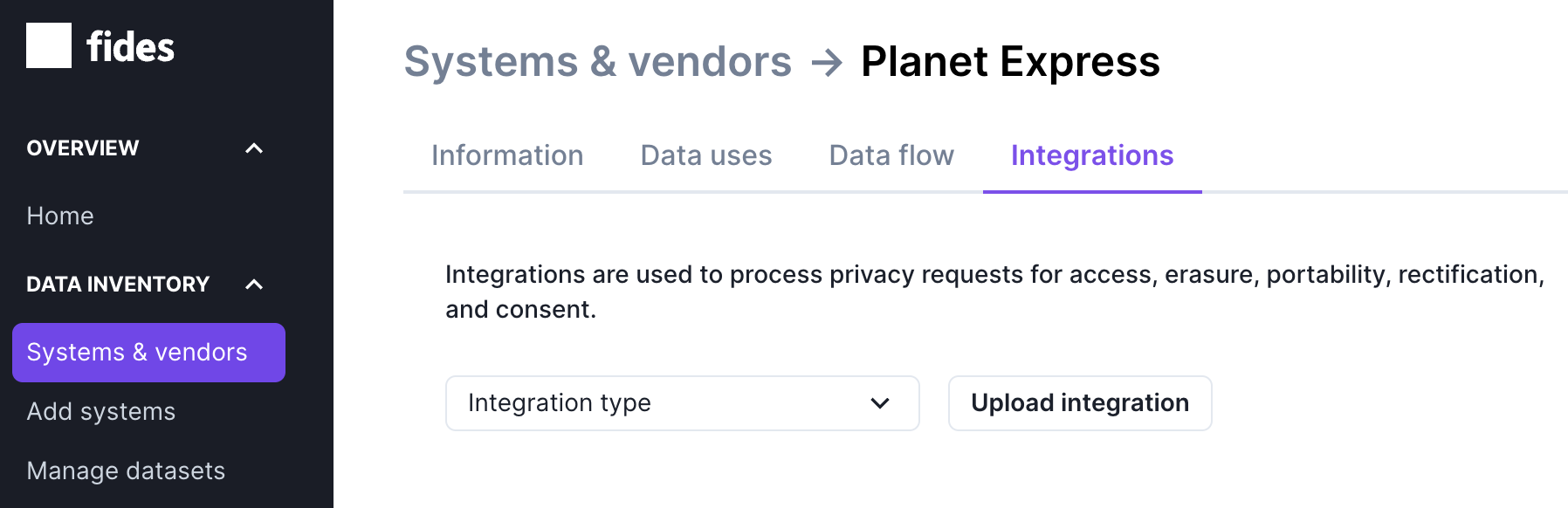
Fides supports custom integration templates that can be uploaded at runtime to extend or override the built-in connector library. This feature is available to admin users from the System > Integrations tab.
Requirements
An integration template is uploaded to Fides in the form of a zip file. This zip file must be created manually outside of Fides and include the following:
- SaaS config (required) file must end in config.yml
- Dataset (required) file must end in dataset.yml
Both the SaaS config and dataset must have a fides_key with a value of <instance_fides_key>. Refer to the docs for guidance on how to write a SaaS config and dataset.
You can optionally also include the following in the zip file:
- Icon (optional) An svg icon to be used in the UI to represent your custom integration
Upload integration template
Clicking the Upload integration button will present you with a modal to upload your custom integration templates. From here, you can click the drop zone to open the file selector or drag and drop your custom integration template zip file.
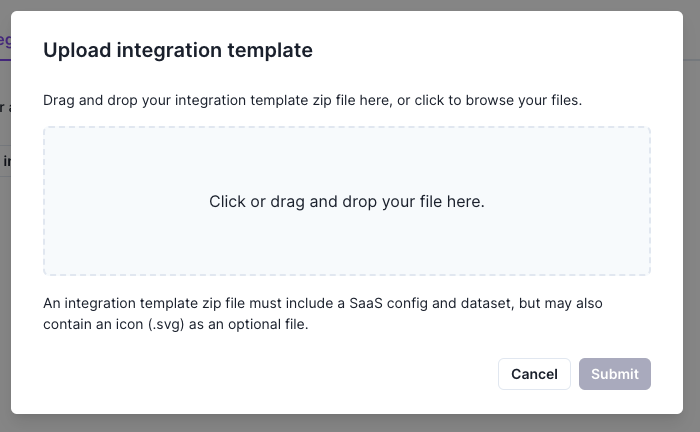
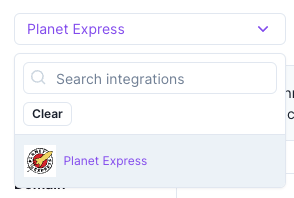
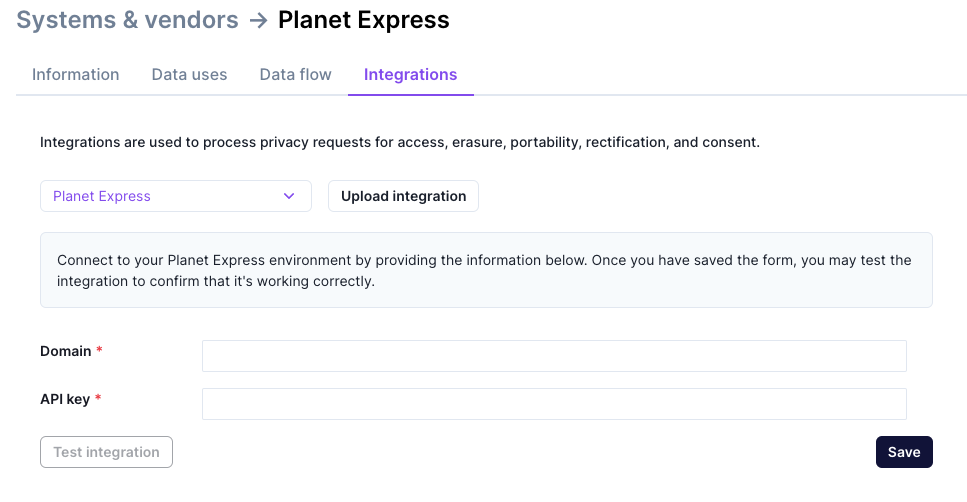
If the template passes validation, your new integration template will be saved and available for use. Custom integrations are marked with a gear icon in the UI to distinguish them from built-in Fides integrations.
Behind the scenes
- The SaaS config and dataset are validated to ensure proper formatting and compliance with the Fides system requirements.
- The files in the custom integration template are written to the
custom_connector_templatetable in the Fides database to be available between server restarts.
Updating custom templates
Custom integration templates do not use version-based update tracking. When you upload a new version of a custom template, Fides applies the changes immediately — all existing connections of that integration type are updated to use the new template as soon as the upload completes.
This differs from built-in templates, which are tied to Fides release versions and update automatically on server restart when a new version of the integration is available.
In both cases, if the integration's dataset has been customized (e.g., added data categories or removed fields), Fides performs a three-way merge to preserve your changes during the update.
Reverting to a built-in template
If a custom integration template shares the same type as a built-in Fides integration (e.g., a custom zendesk template overriding the official one), you can revert to the Fides-provided template by removing the custom template.
To remove a custom template, use the Remove button in the UI or call the delete endpoint via the API:
DELETE /api/v1/connector-templates/{connector_template_type}When a custom template is removed, Fides automatically reverts all connections of that integration type to use the built-in template. Any dataset customizations made to individual connections are preserved through the same three-way merge process described above.